Vegas Queens App Download: Android APK and iOS Install Instructions
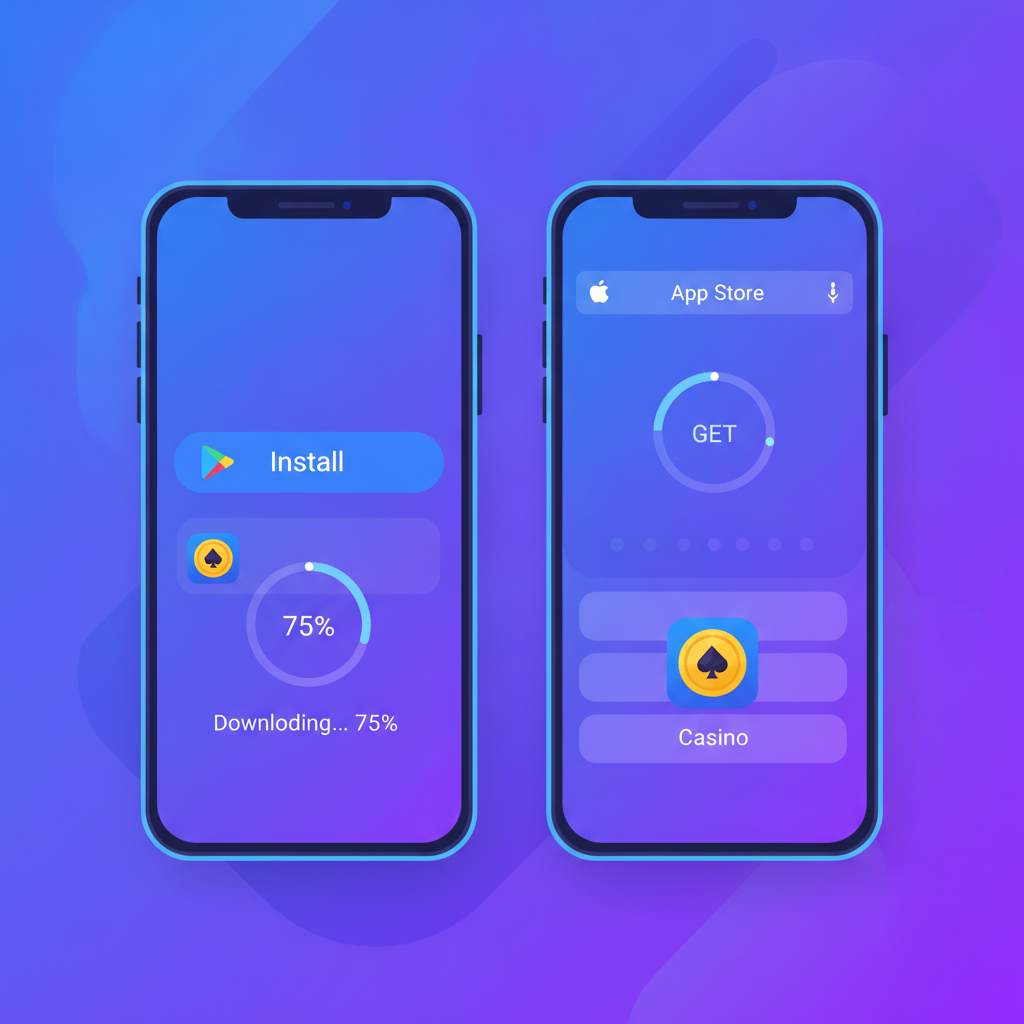
Where to Download the Official Vegas Queens APK for Android
Vegas Queens does not publish its Android app through Google Play Store. Instead, the platform distributes a standalone APK file that players download directly from the official Vegas Queens website.
To get the official Vegas Queens app download, open your mobile browser and navigate to the Vegas Queens homepage. Look for a prominent "Download App" or "Get Android App" button, usually positioned at the top of the page or in the main navigation menu. Tapping this button will start the APK download automatically.
Important: Only download the APK from the official Vegas Queens domain. Third-party file-sharing sites, APK mirrors, and unofficial download pages may distribute modified or outdated versions. If you're unsure whether you're on the legitimate site, check the URL carefully before downloading.
The APK file typically saves to your device's "Downloads" folder. You'll see a notification once the download completes. The file name usually includes "VegasQueens" and the version number.
How to Enable 'Unknown Sources' and Install the APK Safely
Because the Vegas Queens app is not from Google Play, Android blocks installation by default. You need to grant permission for your browser or file manager to install apps from unknown sources.
For Android 8.0 and newer:
- After downloading the APK, tap the file to begin installation
- Android will show a prompt: "[Your browser] is not allowed to install apps from this source"
- Tap "Settings" in that prompt
- Toggle on "Allow from this source"
- Press the back button to return to the installer
- Tap "Install"
For Android 7.1 and older:
- Open Settings on your phone
- Go to Security or Privacy (depending on your device)
- Find "Unknown sources" and toggle it on
- Confirm the warning message
- Open your Downloads folder and tap the Vegas Queens APK
- Tap "Install"
Once installation finishes, you can disable the "Unknown sources" permission again if you prefer tighter security. The Vegas Queens app will remain installed and functional.
Safety tip: Before installing, some players check the APK file size and version number against details listed on the Vegas Queens website. This confirms the file downloaded completely and matches the current release.
iOS Web-App Install Steps (Add to Home Screen)
Vegas Queens does not offer a native iOS app through the Apple App Store. Instead, iPhone and iPad users access the platform through a web app that can be saved to the home screen for quick access.
To install the Vegas Queens web app on iOS:
- Open Safari and go to the Vegas Queens website
- Log in to your account or navigate to the homepage
- Tap the Share icon (square with an arrow pointing up) at the bottom of the screen
- Scroll down and tap "Add to Home Screen"
- Edit the name if you like (it will default to the site name)
- Tap "Add" in the top-right corner
An icon for Vegas Queens will appear on your home screen alongside your other apps. Tapping it opens the platform in a dedicated browser window without the Safari toolbar, giving it an app-like feel.
The web app does not require installation permissions or storage space beyond Safari's cache. It automatically updates whenever Vegas Queens makes changes to the website, so you always access the latest version without manual updates.
Note: The "Add to Home Screen" feature works best in Safari. Other iOS browsers like Chrome or Firefox may not support full web-app functionality.
App File Size, Android Version Requirements, and Storage Tips
Android APK file size: The Vegas Queens app download is typically between 85 MB and 120 MB, depending on the version. The installed app occupies roughly 150 MB to 200 MB of storage once all assets are in place.
Minimum Android version: Vegas Queens requires Android 5.0 (Lollipop) or newer. The app runs smoothly on Android 8.0 and above. If your device is running Android 4.4 or older, you'll need to upgrade your operating system or use the mobile browser version instead.
Storage tips for devices with limited space:
- Clear cache regularly. Go to Settings > Apps > Vegas Queens > Storage > Clear Cache. This removes temporary files without logging you out or deleting your account data. Clearing cache every few weeks can free up 20–50 MB.
- Uninstall unused apps. Check your app drawer for games or utilities you no longer use. Removing two or three old apps usually creates enough room for the Vegas Queens install.
- Move photos and videos to cloud storage. Google Photos offers free backup for Android users. Uploading media to the cloud and deleting local copies can recover several gigabytes.
- Use a microSD card. Some Android devices let you move apps to external storage. Go to Settings > Apps > Vegas Queens > Storage > Change, then select your SD card if the option appears. Not all phones support this feature.
iOS storage: Because the iOS version is a web app, it doesn't consume significant device storage. Safari caches images and scripts, but these files rarely exceed 30–50 MB. If you need to free up space, go to Settings > Safari > Clear History and Website Data, though this will log you out of Vegas Queens and other sites.
App Performance and Updates
The Vegas Queens app receives updates every few weeks. When a new version is available, the platform typically displays an in-app notification prompting you to download the latest APK. You can also check the website's download page to see if a newer version is listed.
To update the Android app, download the new APK and install it over the existing version. Your login credentials, settings, and account data remain intact. You do not need to uninstall the old version first.
For iOS users, the web app updates automatically in the background whenever you open it, as long as you have an internet connection.
Troubleshooting Common Installation Issues
"App not installed" error on Android: This usually means the APK file is incomplete or corrupted. Delete the file from your Downloads folder and download it again from the official Vegas Queens site. Make sure you have a stable internet connection during the download.
"Parse error" message: Your device may be running an unsupported Android version. Check Settings > About Phone > Android Version. If it's below 5.0, the app won't install. Use the mobile browser version instead.
APK download starts but never finishes: Check your available storage. If your device has less than 200 MB free, the download may stall. Clear some space and try again.
iOS icon doesn't appear after adding to home screen: Restart your iPhone or iPad. The icon should appear after the reboot. If it still doesn't show, repeat the "Add to Home Screen" steps in Safari.
App opens to a blank screen: This can happen if your internet connection drops during launch. Close the app completely (swipe it away from recent apps on Android, or swipe up on iOS) and reopen it. If the problem persists, clear the app cache or Safari cache.
Login and Account Access After Install
Once the Vegas Queens app is installed, open it and log in using the same username and password you use on the desktop site. The app remembers your credentials for future sessions unless you manually log out.
If you encounter "Invalid credentials" or "Account not found" errors, double-check that you're entering the correct username and password. The app login is case-sensitive.
For issues with two-factor authentication, verification codes, or locked accounts, contact Vegas Queens customer support through live chat or the email listed on the website.
21+ Only and Responsible Gambling Reminder
Vegas Queens is restricted to players aged 21 and above. All users must verify their age and identity before making deposits or placing bets. The platform includes responsible gambling tools such as deposit limits, session reminders, and self-exclusion options. Access these features in the app's account settings or by contacting support.
If you or someone you know is struggling with gambling, seek help from a qualified counseling service. Set a budget before you play, never chase losses, and remember that gambling should be entertainment, not a way to make money.